


Earlier this year, Salesforce released its Spring ’26 update for Agentforce for Education, focused on making everyday work faster, clearer, and less dependent on manual effort.
Currently, staff across admissions, registrar, advising, and student finance spend too much time coordinating work rather than moving it forward. Email follow-ups, status checks, and repeated data entry continue to slow things down.
At the same time, student expectations have shifted. They expect quick answers and clear next steps. Delays in areas like transfer credit, registration, or financial aid now directly impact conversion.
Spring ’26 starts to change this. More interactions are guided or handled within the system. Students get answers earlier. Staff step in with better context, not to chase information.
For CIOs, this is about how work flows through the institution. Where time is spent, how quickly decisions happen, and how consistently the university delivers a responsive student experience at scale, especially as institutions rethink how their core systems and processes work together.
Feature 1: Instant Clarity on Transfer Credit Decisions
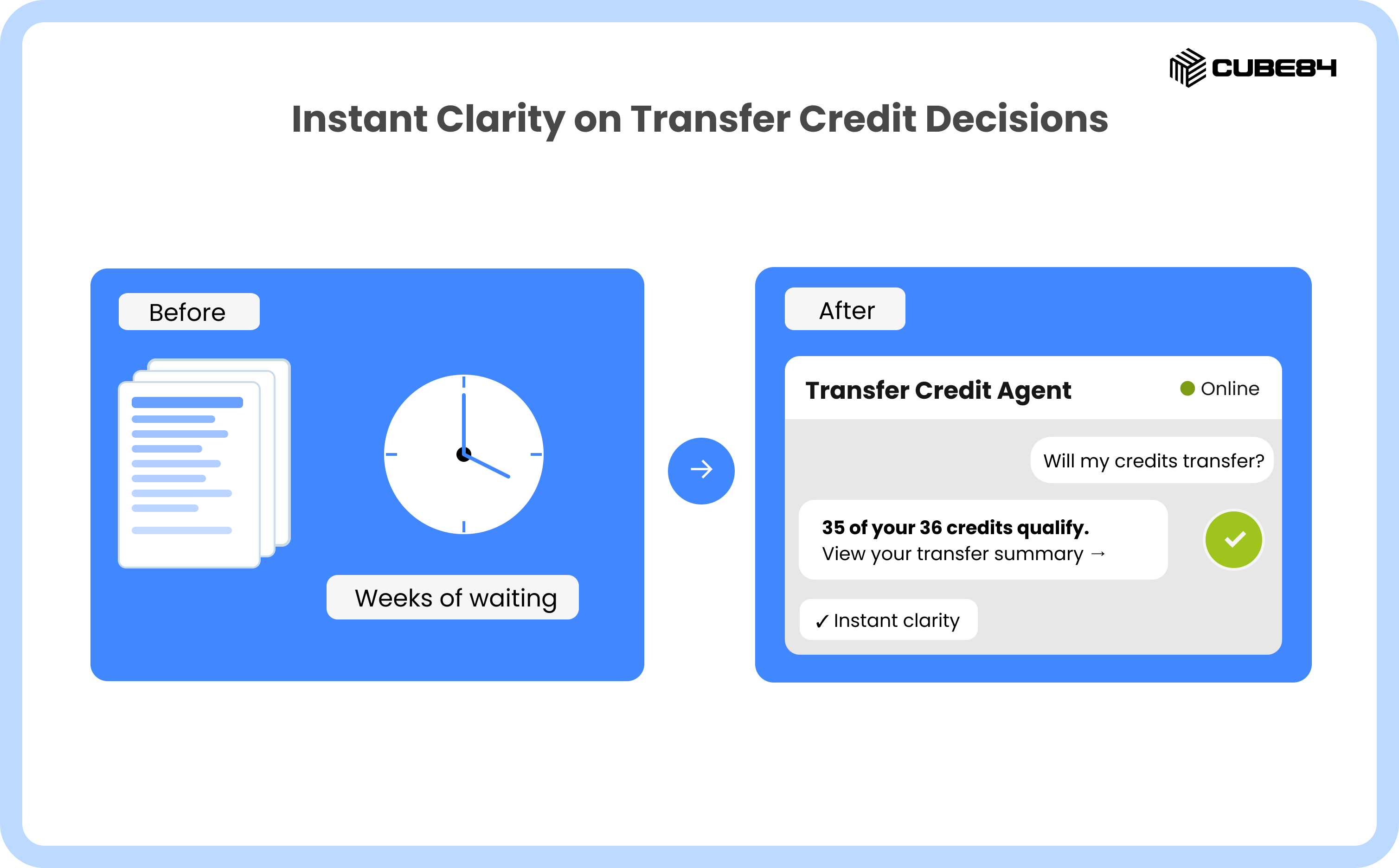
Transfer credit evaluation has traditionally been slow and unclear. Students submit transcripts and wait weeks for answers, often dropping off because they don’t know how their prior learning will count.
Spring ’26 changes this. Students can get early, conversational estimates before applying. Requests come in structured, and staff review pre-processed cases instead of starting from scratch.
In practice, more students move forward, fewer drop off, and staff spend less time chasing information.
What This Looks Like in Salesforce
The Transfer Credit Agent (beta) in Agentforce for Education adds a few key capabilities:
Chat-based estimates for prospective students
Automated course matching using your existing equivalency rules
A single flow for application and staff review
Document upload, with the ability to reuse early estimates for official requests
Instead of starting from scratch, the system does the initial work and guides the process forward.
How to Set This Up
1. Check readiness
You are on Spring ’26
Education Cloud is licensed
Agentforce for Education is enabled
2. Turn on the feature
Go to Setup → Education Cloud / Agentforce settings
Enable Transfer Credit and Transfer Credit Agent (beta)
3. Configure your data
Course equivalencies
Institutions and programs
Transfer credit objects (for example CourseCreditTransferAppln)
4. Make it visible to users
Add to applicant portal (Experience Cloud) for estimates
Set up internal console for staff review
Ensure the right permission sets are assigned to both portal users and internal staff
5. Align how your team will use it
Define review and approval rules
Train staff to validate AI-generated recommendations
Feature 2: Stress-Free, Rules-Aware Course Registration
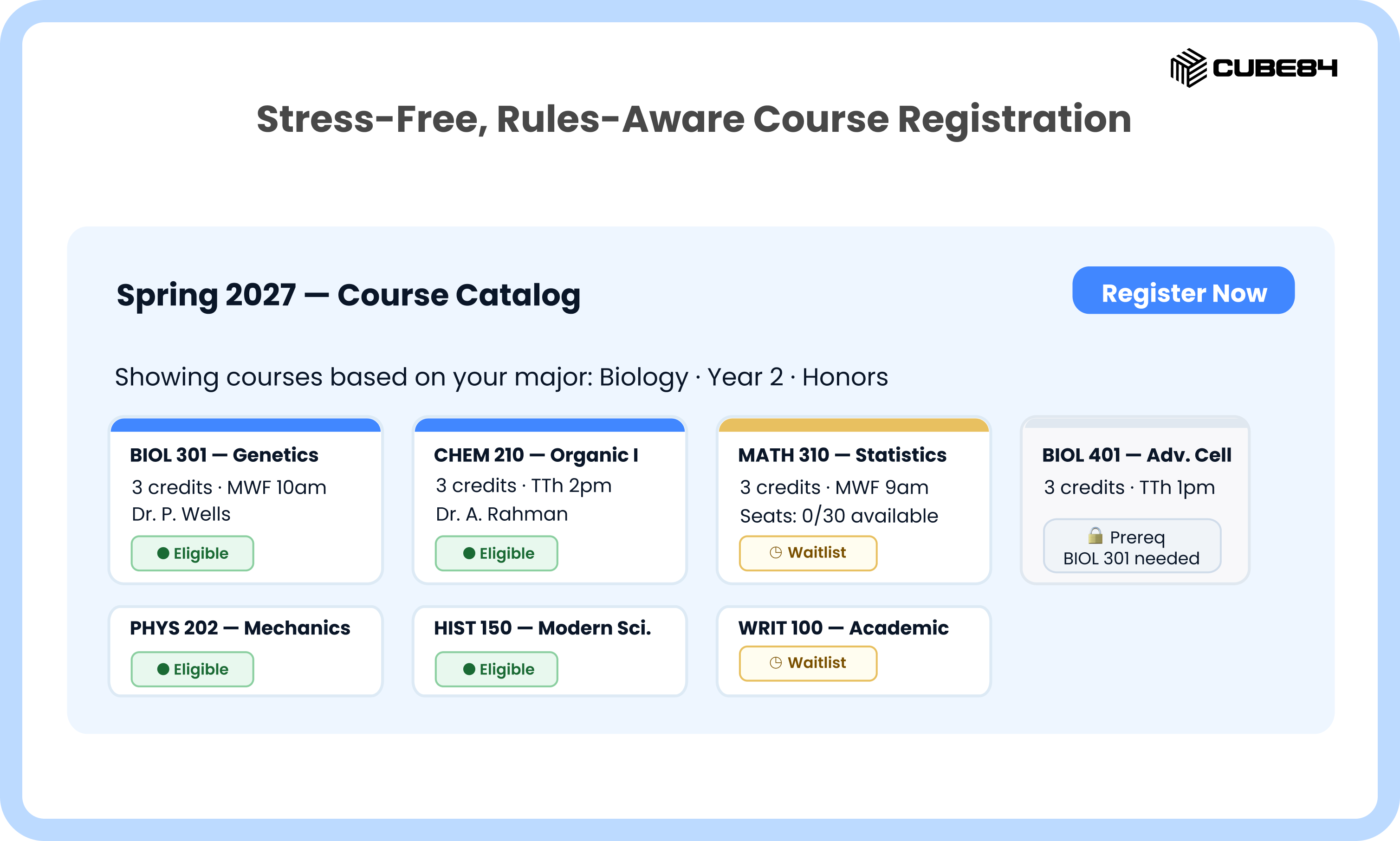
Course registration has long been a pressure point. Students run into eligibility errors they do not understand, and staff spend days handling exceptions, overrides, and walk-ins.
Spring ’26 starts to improve this. Students can see what they are eligible for and why during registration itself. Waitlists for high-demand courses are structured, not managed manually. Staff review fewer issues instead of firefighting each case.
What This Looks Like in Salesforce
Eligibility rules are evaluated automatically using learner attributes (major, cohort, honors, etc.)
Course search and registration in Experience Cloud with visibility into availability and eligibility
Configurable waitlists with automated offers and student self-service actions
How to Set This Up
1. Check readiness
Enable Advanced Academic Operations
Enable Course Search & Registration
2. Configure your data
Define learner attributes and map them to course eligibility
Set up course offerings and rules
3. Set up the experience
Configure Course Search and Registration pages in Experience Cloud
4. Configure waitlists
Enable waitlist management
Define priorities and offer windows
Activate flows for offers and responses
5. Test before release
Run a sandbox registration cycle
Validate edge cases (prerequisites, holds)
Feature 3: Advising and Appointments That Just Work
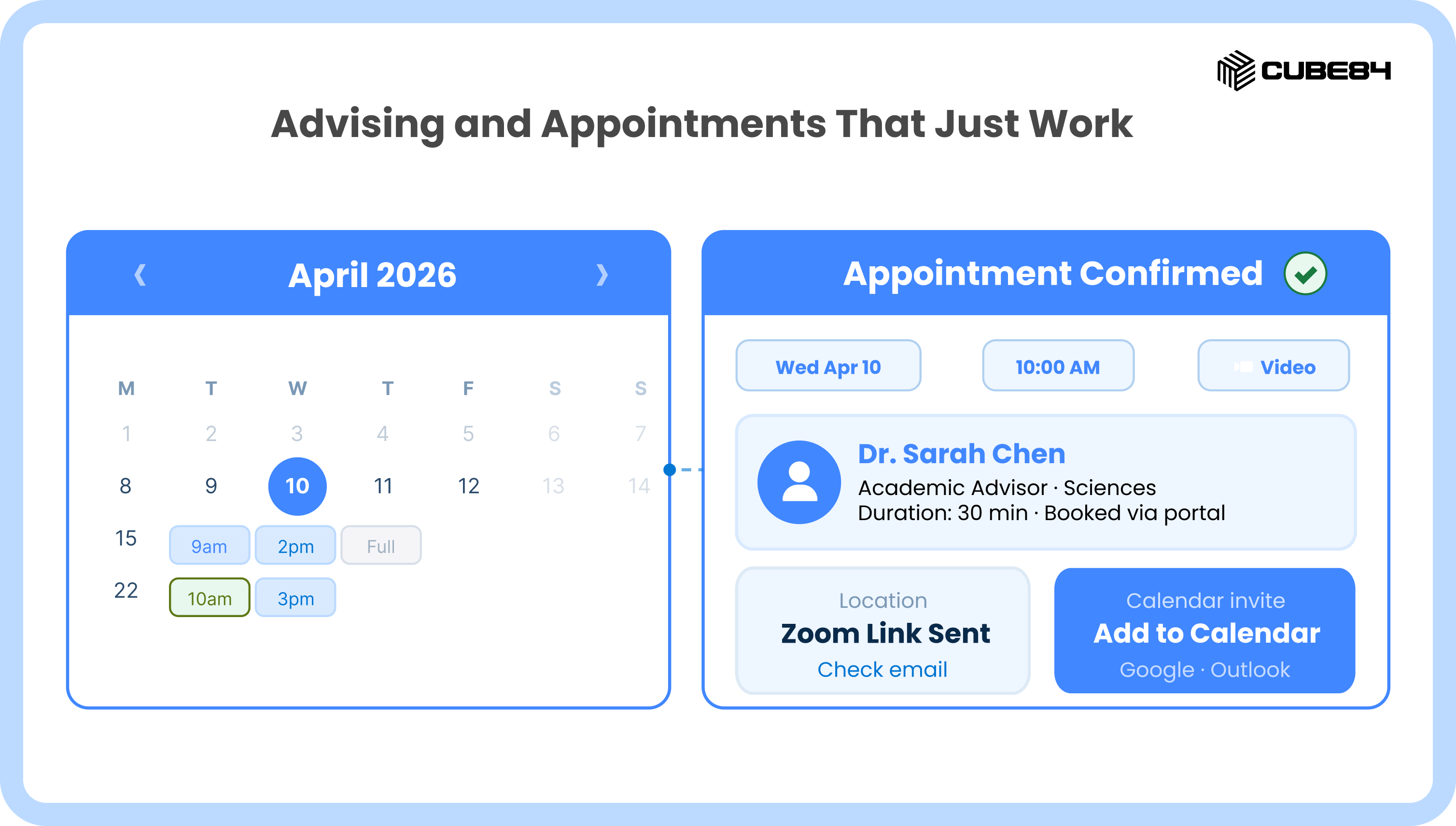
Setting up advising and service appointments has often been harder than it should be. Availability doesn’t always reflect reality, bookings overlap, and staff spend time fixing issues and following up.
Spring ’26 introduces a more guided setup with checks to validate availability, policies, and shifts. Students book through a cleaner, more consistent experience, with fewer scheduling errors and no-shows.
What This Looks Like in Salesforce
Guided setup for appointment scheduling in Agentforce Education
Built-in checks to ensure availability, policies, and shifts are configured correctly
A richer scheduling data model for better reporting and tracking
Instead of piecing setup together, the system walks you through it end to end.
How to Set This Up
1. Check readiness
Ensure Salesforce Scheduler / Appointment Management is enabled
2. Use guided setup
Navigate to the Appointment Scheduling setup page in Salesforce Go and follow the guided setup to enable required features and assign permissions.
3. Configure scheduling
Define appointment topics (advising, financial aid, etc.) and appointment templates; map each appointment template to a service territory and appointment topic.
Assign staff, locations, and time slots
Set policies and engagement channels
4. Enable shifts and availability
Configure shifts if needed
Validate availability logic
5. Expose and test
Add booking to Experience Cloud
Pilot with a small group before rollout
Use the preconfigured Education Applicant Portal template in Experience Cloud, which includes integrated scheduling, or build your own learner portal. Learners can view staff availability and choose the time, place, and channel that works best for them. For the appointment booking flow, you can use the default OmniScript or tailor it to your institution using FlexCards to control what data is collected and displayed.
Feature 4: Student Financials With Real-Time Transparency
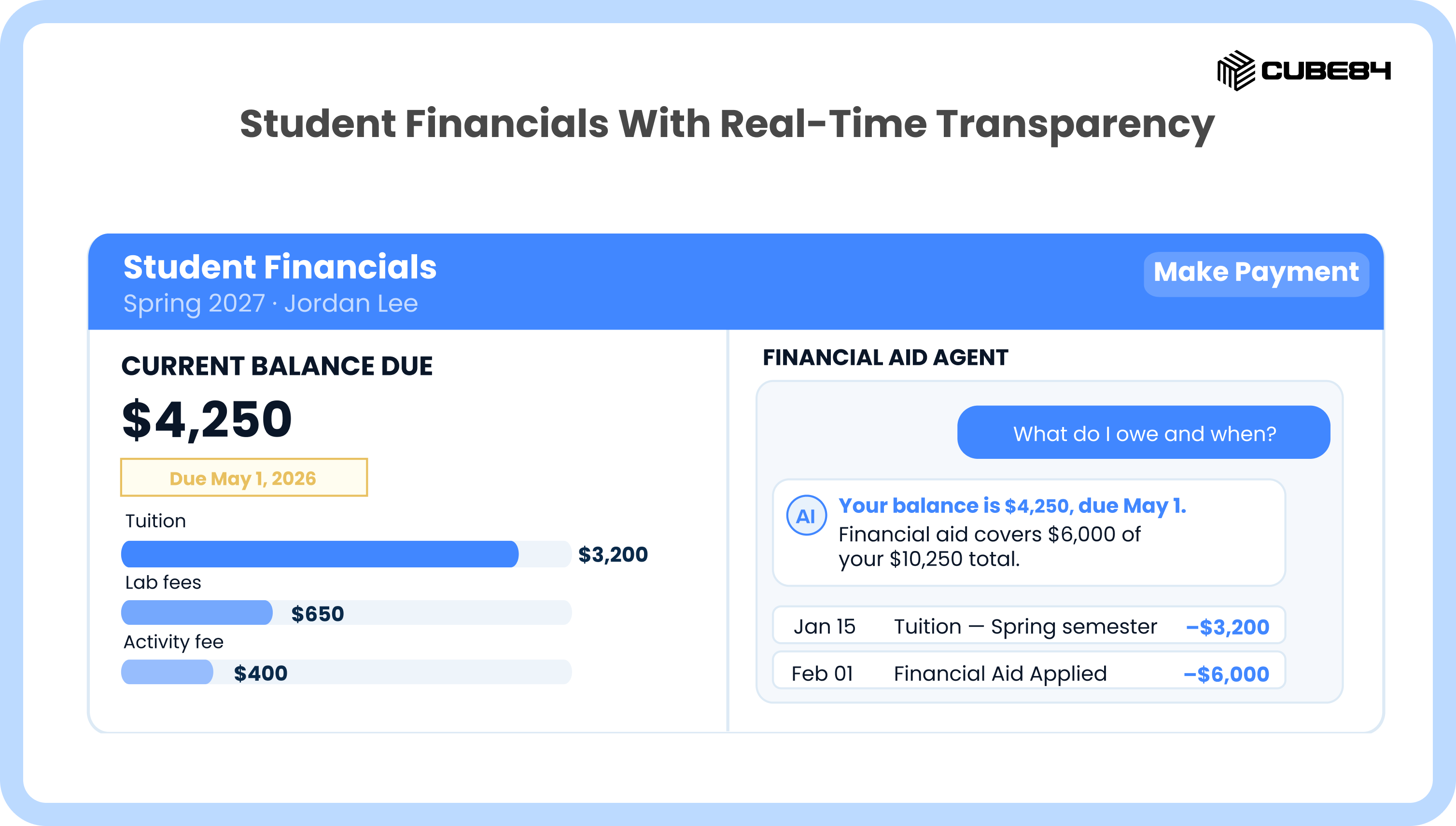
Student financial information is often fragmented across offices. Even basic questions like “What do I owe?” require staff to pull information from multiple places.
Spring ’26 brings more of this into one place. Students can see balances, breakdowns, and explanations without needing to reach out. Staff handle fewer routine queries, leading to better visibility for both students and leadership.
What This Looks Like in Salesforce
A centralized Student Financials module for tuition and fees
A Student Financials Agent that answers common financial questions
Configurable fee structures and accounting rules
How to Set This Up
1. Enable the module
Turn on Student Financials in Education Cloud settings
2. Configure financial data
Set up your Pricebook and Pricebook entries, Academic Orders, and Order Items. These are the core objects in the Student Financials data model that drive charges and billing.
Set up fee structures, tuition tables, and charge types
Define posting rules and integrations
3. Set up the agent
Configure common questions (balances, due dates, fees)
Ground responses in your financial data and flows
4. Expose to users
Add to Experience Cloud for students
Configure staff console access
Assign the Education Cloud for Experience Cloud User permission set to student users
5. Align controls
Set permissions and compliance rules
Validate accuracy before rollout
Feature 5: Course Collaboration and Operations in Slack
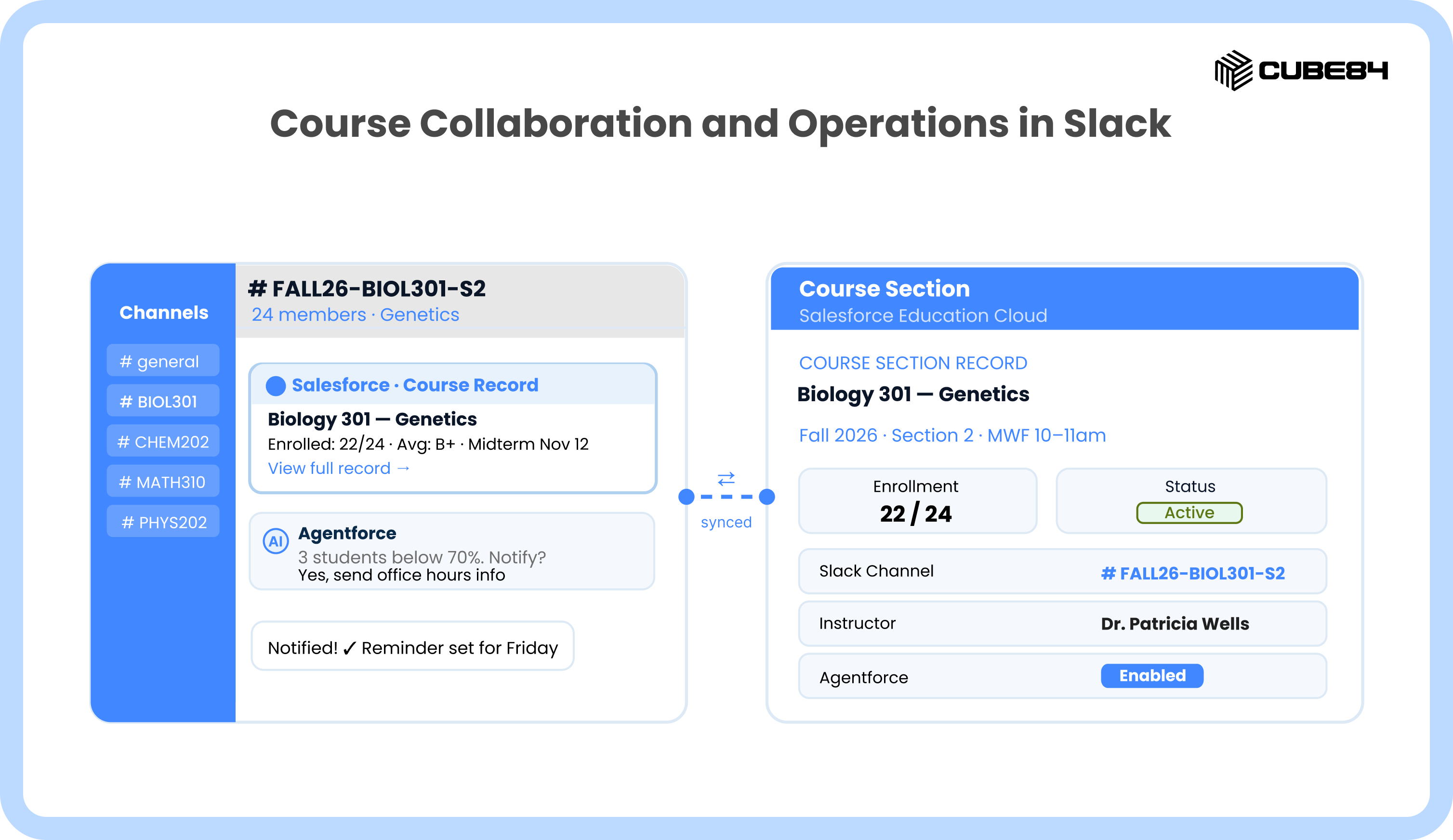
Course communication is often split across email, LMS tools, and informal channels.
Spring ’26 connects course collaboration directly to Slack. Each course has a dedicated channel tied to Salesforce, with participants and context synced automatically, giving students and staff a single, shared place for updates.
What This Looks Like in Salesforce
Course-linked Slack channels with synced participants
Ability to share course content and updates from Salesforce to Slack
Agentforce-powered interactions to surface course data and actions
How to Set This Up
What This Looks Like in Salesforce
1. Establish the Integration Core
Enable Salesforce for Slack by installing the Salesforce for Slack app from the Slack App Directory and turning on the integration in Salesforce Setup.
Activate Agentforce for Education so it can index course data and connect Salesforce and Slack.
2. Configure Course Mapping
Use Slack Integration for Education settings to map Salesforce Course Offering or Course Section records to Slack channels.
Define naming conventions (e.g., [Term][CourseID][Section]) so channels stay organized and easy to search.
3. Automate Channel Lifecycle
Set up a Flow to create a Slack channel when a Course Section status becomes “Active.”
Use Slack Student Sync to add or remove users from channels based on Enrollment records in Salesforce.
4. Define Data & Interaction Policies
Decide what happens in Slack (quick Q&A, chats) vs Salesforce (grades, official records, student success notes).
Restrict which Course objects Agentforce can read and share in Slack to stay compliant with FERPA and privacy rules.
5. Enablement & Governance
Train faculty with simple “Agent Prompts” so they know how to ask Agentforce for course updates in Slack.
Remind everyone that collaboration can happen in Slack, but Salesforce remains the source of truth for all student and institutional data.
Feature 6: Configuring Agentforce Education Faster With Salesforce Go
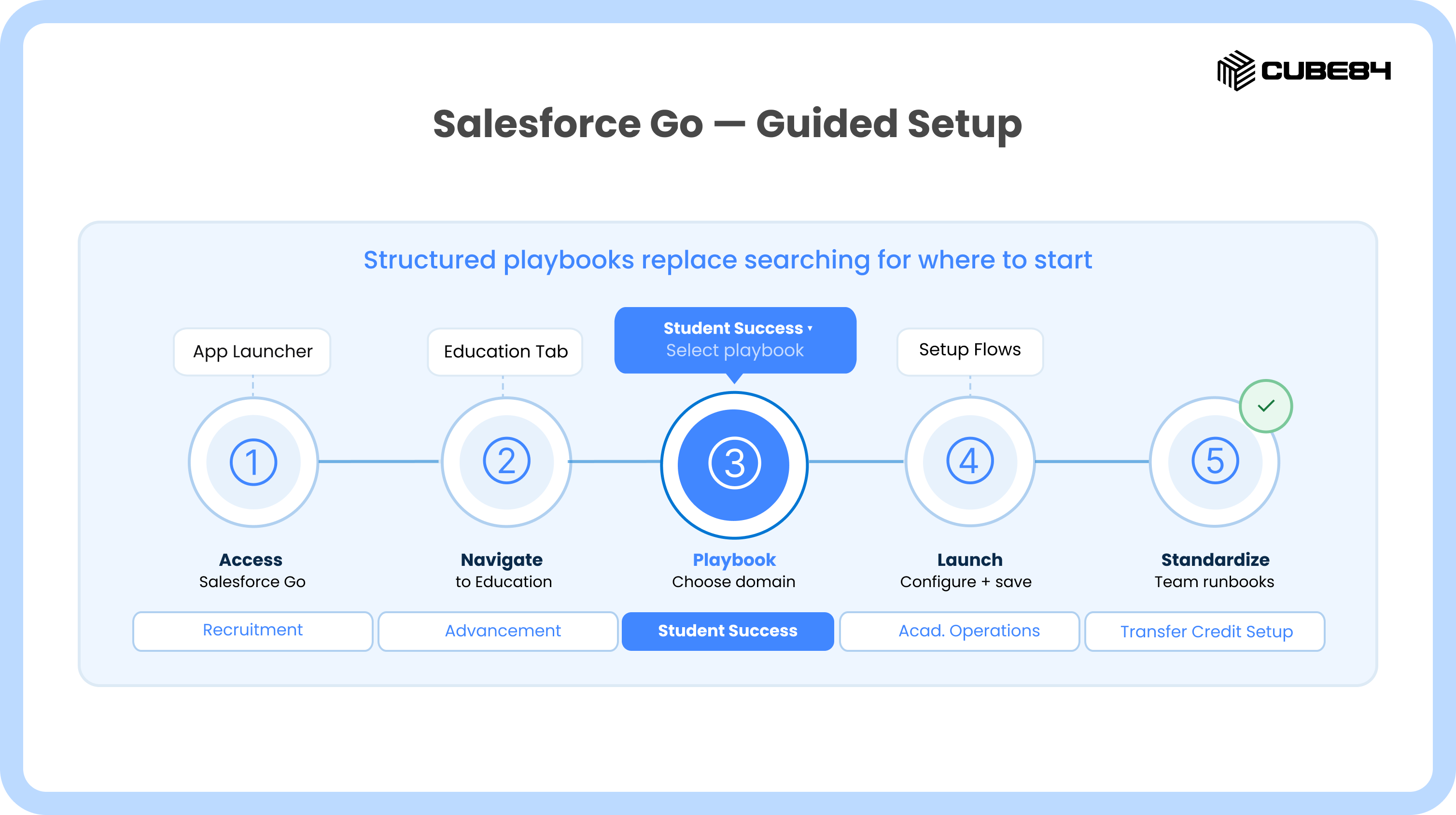
Getting started with new capabilities often means figuring out where to begin, what to enable, and in what order. Teams spend more time searching for the right steps than actually configuring.
Spring ’26 introduces clearer, guided setup through Salesforce Go. Teams can follow structured paths instead of figuring it out as they go.
What This Looks Like in Salesforce
Guided configuration paths across recruitment, advancement, student success, and operations
Centralized access to setup steps and resources
Playbooks that connect features to implementation steps
How to Set This Up
1. Access Salesforce Go
Open Salesforce Go from Setup or the App Launcher in your org.
Make sure your user has the right permissions to access Salesforce Go and Education content.
2. Navigate to Education
In Salesforce Go, select the Agentforce Education section to view education‑specific setup journeys.
This section surfaces tailored guidance for universities instead of generic Salesforce features.
3. Follow guided playbooks
Choose the domain you want to configure, such as Recruitment & Admissions, Student Success, or Academic Operations.
Each playbook walks you through prerequisites, key steps, and recommended order for setup.
4. Launch setup flows
Use the buttons or links in Salesforce Go to launch the relevant setup flows for each feature.
Complete and save the flows to enable and configure features like Transfer Credit, Student Financials, or Course Registration.
5. Standardize internally
Add Salesforce Go steps into your internal implementation runbooks so every project follows the same pattern.
Use Salesforce Go as a default starting point for new admins and teams to reduce variability and ramp‑up time.
What’s Next
Spring ’26 is about small, daily improvements across the student lifecycle: faster transfer clarity, more predictable registration, easier scheduling, clearer financials, and more connected operations.
The best way to approach this is not to do everything at once. Start with one or two areas where your teams feel the most friction, then pilot, refine, and expand as staff and students begin to see the difference.