


Salesforce provides automation, analytics, and user management to streamline operations and improve customer engagement. Without proper change tracking, admins struggle to troubleshoot, manage security risks, and spend more time fixing issues instead of optimizing workflows.
Setup Audit Trail helps admins track system changes, catch issues early, stay compliant, and keep business operations secure and reliable.
This guide shows you how to set up the Setup Audit Trail, track system changes, and improve security so admins spend less time fixing issues and more time optimizing workflows. If you want to explore Setup Audit Trail’s business impact, use cases, and strategic advantages. Now, let’s cover the basics.
1. What is “Setup Audit Trail” in Salesforce?
Setup Audit Trail in Salesforce logs configuration changes made by administrators. It tracks modifications to security settings, permissions, integrations, and custom configurations, helping admins monitor system updates and maintain control.
As for what is the use of Setup Audit Trail in Salesforce, it helps admins maintain control and security by providing clear visibility into system changes by:
Identifying who made specific changes and when.
Detecting unauthorized or accidental modifications.
Maintaining a record for compliance audits.
Troubleshooting system issues caused by recent changes.
For example- users lose access to critical reports, disrupting workflows and delaying decisions. A Salesforce admin checks Setup Audit Trail, finds that a key permission set was removed, and restores access within minutes. This prevents downtime, ensures compliance, and strengthens security controls.
2. What is the Difference Between Setup Audit Trail and Field History Tracking?
While both Setup Audit Trail and Field History Tracking provide change tracking in Salesforce, they serve different purposes:
Feature | Purpose | What It Tracks |
Setup Audit Trail | Tracks system configuration changes | Profile updates, security changes, workflow modifications, etc. |
Field History Tracking | Logs data changes within records | Changes to specific field values in standard/custom objects |
Setup Audit Trail tracks backend administrative actions, whereas Field History Tracking focuses on data record changes.
For example: Let’s say a sales rep updates an Opportunity Stage from “Negotiation” to “Closed-Won” to reflect a successful deal—that change gets logged in Field History Tracking because it’s a record-level update.
On the other hand, if an admin modifies a workflow rule to automatically trigger an approval process for deals over $50,000, that falls under Setup Audit Trail since it’s a system-level change impacting automation.
3. How to View and Set Up Salesforce Setup Audit Trail
Tracking Salesforce changes is essential for security, compliance, and system stability. The Setup Audit Trail feature helps admins monitor updates, investigate issues, and enforce governance.
Admins often ask, “How do you create an audit trail?” Here’s how to set it up:
Step 1: Accessing the Setup Audit Trail
Log in to Salesforce as an Admin.
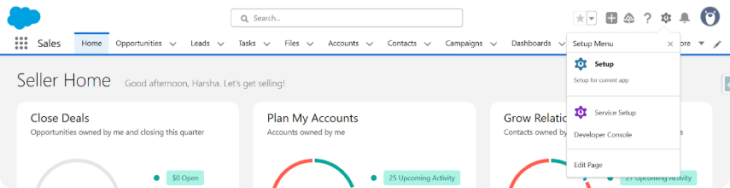
Click on the Gear Icon (Setup) in the top-right corner.
In the Quick Find Box, type “View Setup Audit Trail Salesforce”.
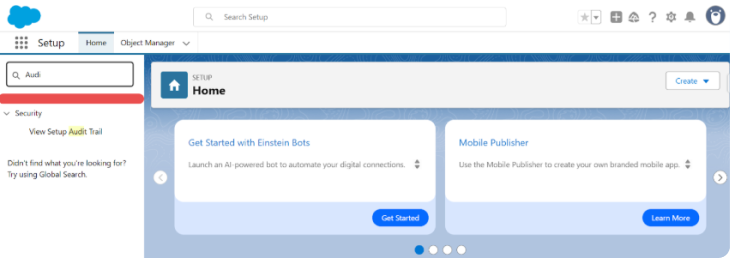
Click Setup Audit Trail to view the log.
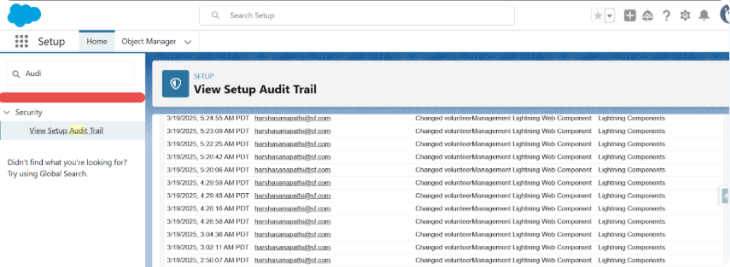
The log will display the last 20 changes, with an option to download historical data.
Step 2: Exporting Audit Logs for Extended Retention
Salesforce only retains six months of audit history. To store records longer:
Go to the Setup Audit Trail.
Click “Download setup audit trail salesforce template”.
Select the date range (e.g., last 30 days).
Download the CSV file for archival or further analysis.
Step 3: Using the Salesforce Setup Audit Trail API
To automate tracking, Salesforce provides an API to extract audit logs:
Access the Salesforce Setup Audit Trail API via REST API queries.
Integrate with SIEM tools for real-time security monitoring.
For example: Manual tracking can't prevent security risks. Excessive permission grants, disabled security settings, and login policy changes go unnoticed until they cause issues. Use the Setup Audit Trail API to detect these changes in real time. Set up API alerts to notify admins of high-risk actions, enabling immediate response and stronger security.
Setting up the Salesforce Setup Audit Trail is only the beginning. Admins must know which changes it tracks and how to use that data effectively. Let’s break down the key changes tracked in the Setup Audit Trail and why they matter.
4. Which Changes Are Tracked in Setup Audit Trail?
Setup Audit Trail tracks system changes, logging security updates and configuration modifications. Knowing what it records helps admins maintain governance, troubleshoot issues, and ensure compliance.
Key Changes Tracked:
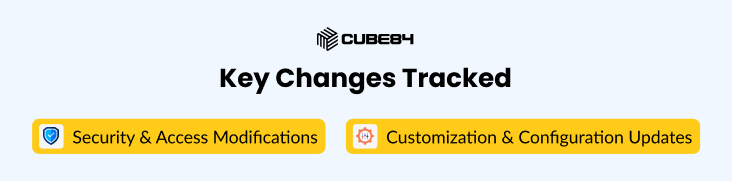
1. Security & Access Modifications
Track changes to profiles, roles, and permission sets to monitor access updates.
Log updates to Single Sign-On (SSO) settings to secure authentication.
Record adjustments to IP restrictions, login policies, and session settings to control access.
Capture delegated administration changes to track new admin privileges.
2. Customization & Configuration Updates
Track workflow changes, approval processes, and automation rules to maintain business processes.
Log modifications to API integrations and connected apps to monitor system access.
Record updates to object schemas (custom fields, page layouts, record types) to ensure data consistency.
Capture changes to validation rules and formula fields to protect data accuracy.
For example: The finance team suddenly can’t access billing reports. Instead of guessing, the admin checks Setup Audit Trail, finds a profile update that removed access, restores the settings, and fixes the issue instantly. This proactive approach turns a potential crisis into a quick fix.
5. Advanced Configuration: Extending Audit Tracking
How do you install an audit trail to ensure long-term tracking in Salesforce? Understanding the steps in how you install an audit trail helps organisations set up effective tracking systems. Salesforce retains audit trail records for only 180 days by default, so admins must take proactive steps to store and manage these records long-term. To prevent data loss and ensure access to historical records, follow these strategies:
Export the Salesforce Audit Trail object regularly using the Salesforce API, Data Loader, or Workbench. This ensures records are stored beyond the default retention period.
Monitor the Salesforce Audit Trail limit through Storage Usage Reports or API calls to avoid reaching storage limits and ensure compliance.
Use external storage solutions such as AWS, Google Drive, or an encrypted cloud repository for secure archiving.
Best Practices for Proactive Monitoring
To ensure continuous visibility and security of system changes within Salesforce, follow these best practices:
Schedule monthly exports to maintain historical records and prevent data loss.
Set up automated reports and alerts for sensitive changes like role modifications, security setting updates, and mass data exports.
The Setup Audit Trail helps track system changes, but it has limits. To monitor field-level modifications and extend retention, you must enable Field Audit Trail for deeper visibility. Let's get into how to set it up.
6. How to Enable Field Audit Trail in Salesforce for Deeper Tracking
Tracking system changes alone is not always enough. Key field updates also need clear visibility. Field Audit Trail ensures long-term tracking of critical data such as pricing, approvals, and contract terms. Here’s how to enable Field Audit Trail in Salesforce:
Navigate to Setup > Security > Field History Tracking.
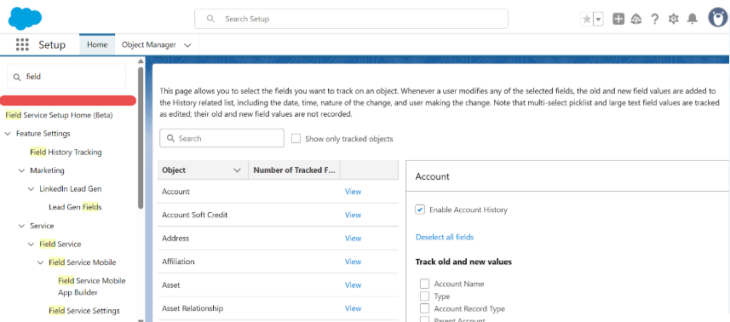
Choose the objects and fields to track.
Enable Field Audit Trail for extended retention.
For example, an admin struggles to track frequent discount changes in Opportunities. They enable Field Audit Trail to ensure Salesforce logs every update, tracks modifications, and keeps records ready for compliance reviews. This removes guesswork and strengthens accountability.
However, standard tracking is not always enough. To capture specific business-critical updates, admins need Custom Audit Fields for deeper, more tailored tracking.
7. Creating Custom Audit Field in Salesforce
The default audit trail does not track everything. Custom Audit Fields allow admins to capture key changes specific to their organization. These fields provide clear visibility into critical updates and ensure accurate record-keeping. Here’s how to set them up:
Go to Setup > Object Manager.
Select the desired object (e.g., Account, Opportunity).
Click Fields & Relationships > New Field.
Choose Text or Date/Time format.
Label it as “Custom Audit Field”.
Example Use Case
A compliance team needs to track manual price changes but has no clear record of who made them or when they occurred. They create a Custom Audit Field, ensuring it logs, tracks, and easily reviews every pricing change. Now, they have full visibility and can spot unauthorized changes before they become costly mistakes.
Custom Audit Field helps admins track key changes, but tracking alone isn’t enough. To keep audits accurate, secure, and easy to manage, admins need the right strategies. Let’s look at some best practices for managing Setup Audit Trail effectively.
8. Best Practices for Managing the Setup Audit Trail
Effective audit trail management demands proactive monitoring, timely alerts, and secure data retention. By applying best practices, Salesforce admins can prevent security risks, streamline compliance, and maintain long-term system integrity. This includes:
Use User Audit Trail Salesforce with Flow Builder or Apex Triggers to automate notifications, ensuring real-time alerts for critical system changes such as profile modifications, permission updates, and login anomalies. This enables admins to respond immediately and maintain system security.
Use Setup Audit Trail Salesforce Trailhead to learn how to track changes, monitor user activity, and protect audit logs. Focus on audit analysis, compliance, and security best practices to keep systems in check. A well-managed audit trail helps maintain data accuracy, meet regulations, and spot security risks quickly.
Back up audit logs daily or weekly to keep records safe and easy to access for compliance, security checks, and troubleshooting. Use Salesforce Backup, cloud storage, or encrypted drives to protect data. Store backups in secure locations with encryption and regular checks to prevent tampering.
A strong Setup Audit Trail goes beyond tracking; it requires automation, backups, and smart monitoring. Industry-leading Salesforce experts like CUBE84 help admins take control, automate tracking, and strengthen security.
Conclusion: Take Control of Your Salesforce Security and Compliance
Manually checking audit logs fails to provide complete security. Without automation, admins miss unauthorized modifications, widen compliance gaps, and spend more time troubleshooting instead of optimizing workflows.
Our experts at CUBE84 enable Salesforce Admins to set up, monitor, and automate Setup Audit Trail tracking, reducing security risks and ensuring compliance.
Automate audit tracking, close compliance gaps, and stay in control. Contact us today.