


Introduction: Breaking the Grant Writing Ceiling
Before we even get into the details, we just want to say to everyone in the nonprofit space, you’re doing an amazing job, and it is not simple at all. We really admire the work each of you does, and this blog isn’t here to tell you that you have to do more or that you’re not enough. From talking to many nonprofits over the years, we understand that writing grant proposals can feel like running in place. Most small nonprofits manage about five proposals a week, and mid-sized organizations usually hit seven. Very few teams go beyond that consistently. And it’s not about skill or willpower; it’s that a lot of time gets eaten up by repetitive tasks.
The good news is that hitting ten proposals a week is possible without writing faster. We’ll show you how to set up a system where repetitive content is ready to go so writers can focus on what really changes.
If your teams organize their content, data, and templates well, they can save roughly two hours per proposal. That adds up to about 20 hours of manual work each week and a 40 percent increase in output. This playbook shows how CUBE84 helps nonprofits move past the productivity wall and structure Salesforce to turn seven proposals into ten. Let’s make writing 10 grants a week feel doable.
II. The Foundation: Building Your Institutional Knowledge Base
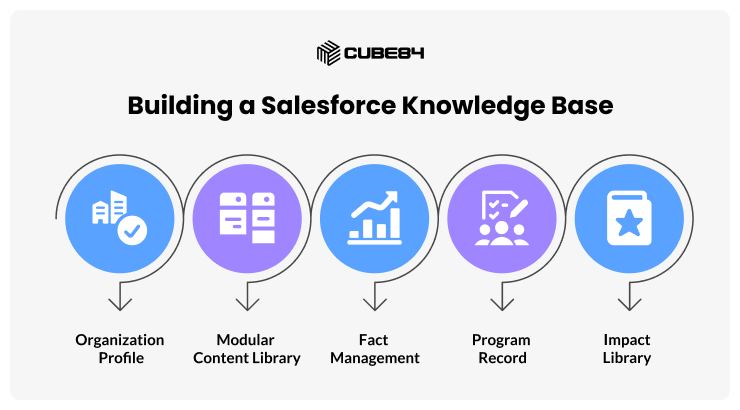
Before writing proposals, your team needs a single place for all key information. Every successful implementation we’ve seen begins with treating Salesforce as the Single Source of Truth for proposal content and data.
Organization Profile: Create one central Org Profile (or Account) record for your nonprofit. Store everything that appears in every grant: legal organization name, EIN, website, address, logo, branding colours, and boilerplate descriptions. This ensures branding is consistent without copying and pasting each time.
Modular Content Library: Rather than full proposals, store your content as content blocks or reusable sections. Create separate text blocks for your organization overview or your budget narrative. Tag each block with metadata based on theme or audience. This setup helps writers search and pick the exact version they need. Salesforce Impact Labs developed the Grants Content Kit specifically to help nonprofits tag paragraphs and assemble applications from proven material. From our experience, teams adopting this library approach completely eliminate blank page syndrome.
Fact Management: Keep numbers like people served, outcomes, or budget totals in fields instead of paragraphs. That way, data stays up to date across all proposals automatically.
Program Record: Set up dedicated Program Management records for major initiatives like Affordable Housing Assistance. Keep the program description and target demographic in this object. Adding key metrics as custom fields allows the system to pull the latest stats automatically.
Impact Library: Keep reusable statistics, success stories, and measurable outcomes. Relocate important impact numbers from buried spreadsheets into a custom Metrics object. You can house last year’s total clients served alongside combined housing outcomes. Storing these numbers as dedicated data fields ensures they populate accurately into any document.
Ensure your org has the Nonprofit Success Pack (NPSP) or Nonprofit Cloud installed. You will need to create a few custom objects and verify user permissions. Once your data model is ready, the rest of the process relies entirely on assembly and automation.
Common Pitfalls to Avoid
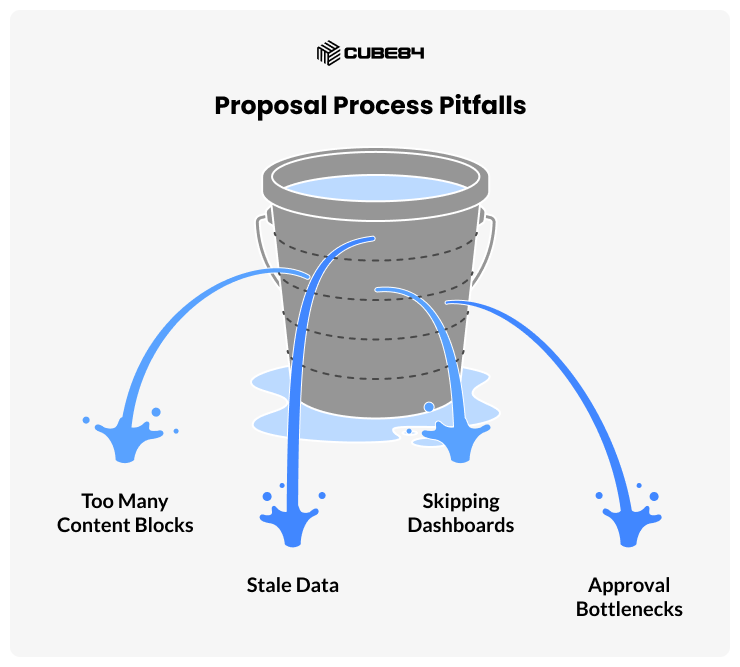
From our experience, a few things can slow teams down if not handled early:
Too Many Content Blocks: It’s tempting to make dozens of tiny blocks, but we recommend starting with a manageable number (e.g., under 50). With too many, picking the right one gets confusing. Instead, create blocks for the major themes and lengths you need, and you can always add more later.
Stale Data: If you store metrics in fields (which you should), remember to update them regularly. Set a reminder (or Flow) to review the key numbers (like people served, budget
totals) annually. An outdated stat in a proposal looks bad.
Skipping Dashboards: It’s easy to overlook simple dashboards. Even a basic Grant Pipeline dashboard (showing submissions, status, and deadlines) makes the system much more intuitive. Don’t make your team hunt through records; give them a weekly submissions report and upcoming deadline alerts.
Approval Bottlenecks: It’s common for final sign-off to slow things down. We suggest using Salesforce’s built-in Approval Process so that, as soon as a proposal is marked “Ready for Review,” an approval request goes automatically to the right people (and even notifies them via Slack or email). This keeps leadership in the loop without manual chasing.
Addressing these pitfalls early on means the framework you build will actually save time instead of creating new hassles.
Prospect Tracking: Planning Ahead
We frequently advise clients to build a custom Funding Opportunity record in Salesforce to track potential foundations. Logging specific details like the estimated grant size or program alignment directly on this object keeps your funding pipeline visible. Linking these prospect records to your active proposals ensures promising opportunities never fall through the cracks. This setup guarantees your development team stays entirely focused on the most viable funding sources.
III.The 12-Step Proposal Builder Framework
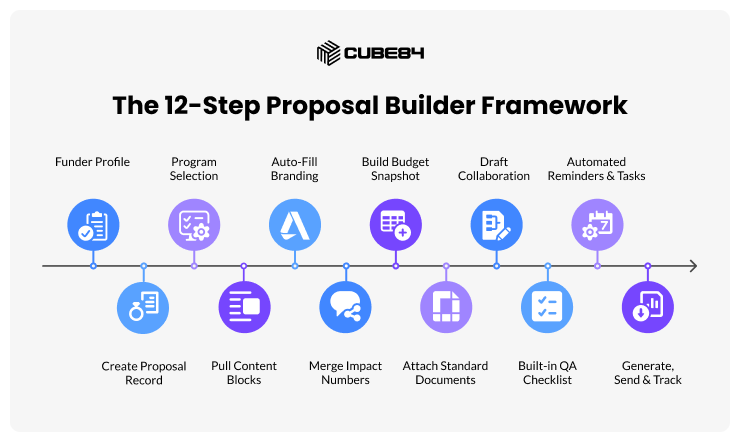
Once your foundational data is secure, you can design a repeatable assembly process. We typically build this engine using custom Salesforce objects tied directly to Flow Builder.
When clients ask us how to operationalize their grant strategy, we walk them through this exact sequence. Following these logical steps guarantees your development team generates a complete draft ready for final review.
Step 1: Funder Profile
Before you start writing anything, pick the funder. Keep a record for each one with their requirements: word limits, attachments, match funding, priority areas, submission method, and portal links. Once you select the funder on a Proposal record, Salesforce can auto-load a checklist so your team doesn’t have to double-check. This keeps everyone on the same page and avoids mistakes.
Note: You can link these funder profiles to prospect tracking records to see alignment scores, typical grant size, and submission frequency.
Step 2: Create a Proposal Record
Every grant starts with a Proposal record. Here, you store the basics: Funder, Program, Amount Requested, Geography, Deadline, and Template Type. This single record drives the rest of the process, pulling content, numbers, and attachments automatically.
Note: Ensure the Salesforce environment has a Nonprofit Cloud or Nonprofit Success Pack set up, and consider creating a Program Record structure with descriptions, metrics, populations served, and geography. These feed proposals automatically.
Step 3: Program Selection
Next, pick the Program the proposal is supporting. The Proposal record can look up the Program record, and all of its descriptions, outcomes, metrics, and populations served are now linked automatically. This saves hours of copy-paste and ensures your proposal is always accurate.
Note: Impact Library objects can store reusable statistics, success stories, and measurable outcomes. These populate content blocks to save time and maintain consistency.
Step 4: Pull in Content Blocks
Now comes the key step: instead of writing each section from scratch, use your modular content blocks. A “Build Proposal Draft” button or Flow can prompt you for program, geography, amount, and template type. Salesforce then drops in the right content blocks for each section. For example, it might add the organization overview, the need statement for housing, and the budget narrative. Each block is chosen based on the tags you set for theme, audience, and length.
Note: Once the blocks and data are in place, tools like Agentforce can even suggest content blocks or retrieve the right numbers, speeding up drafting.
Step 5: Auto-Fill Branding/Cover
Cover pages and letterheads generate themselves. The Org Profile holds your logo, brand colors, footer text, website, and legal name. On each Proposal record, fields pull this info automatically, so every proposal has a consistent, professional cover page without any copy-paste.
Step 6: Merge Impact Numbers
All the key facts in your proposal should come from structured fields, not static paragraphs. For example, if you have a field like “Families Served (2025),” your proposal template can include “{FamiliesServed2025}.” When Salesforce builds the draft, it automatically fills in the current number. This means sentences like “We served {FamiliesServed2025} families last year” are always accurate. It saves editing time and keeps your data consistent across proposals.
Step 7: Build the Budget Snapshot
We’ve seen some clients find budgets overwhelming, but they can be simplified. Keep each line item as a related record with category, amount, and notes. Salesforce can sum the totals automatically and populate the Cost section of your proposal. This way, your numbers always match, and you don’t spend time recalculating manually.
Step 8: Attach Standard Documents
Most funders ask for the same set of documents every time, like 990s, audits, W-9s, board lists, and policies. Store the latest versions in Salesforce Files. With a single click, you can attach the full set to the proposal. No more searching through folders or sending multiple emails.
Step 9: Draft Collaboration
Some teams like drafting sections in Google Workspace or Microsoft 365 first. You can attach those draft links to the Proposal record. Once the text is finalized, paste or upload it into the content blocks. This keeps all versions visible in Salesforce and makes it easier to collaborate without losing track of edits.
Step 10: Built-in QA Checklist
Before sending a proposal, run a quick quality check. Confirm that the amount matches the budget, the funder’s name is correct, the deadline is set, and all attachments are included. You can use validation rules so the proposal can’t be marked “Ready to Send” until everything is complete. This helps catch mistakes before they slow you down.
Step 11: Automated Reminders, Tasks, and Emails
Once a deadline is set, Salesforce can create tasks automatically, such as reminders 14, 7, and 2 days before the due date. You can also track milestones like first draft due, finance review, and final approval. Email alerts notify the team when drafts are ready or if any documents are missing. After submission, post-submission tasks like reporting deadlines can also be automated. Leadership approvals can run through Salesforce Approval Workflows with notifications via Slack or email, so no one has to chase approvals manually.
Advanced organizations can use Salesforce Flow, OmniStudio, or other automation tools to reduce manual work even further. AI tools like Agentforce can suggest content blocks, pull proposal data, and accelerate drafting once the system is in place.
Step 12: Generate, Send, and Track with Dashboards
Finally, merge all sections into a PDF using a document generation tool like Conga Composer, DocuSign Gen, or Formstack Documents. Add a button to email the proposal with a pre-filled subject, body, and attachments.
Dashboards help track:
Weekly submissions and upcoming deadlines
Proposals waiting on finance or approvals
Win rate and submission counts
Missing attachments
Note: Advanced setups can also automate conditional document generation with OmniStudio and schedule annual reviews so program metrics stay current. These dashboards help your team see the full picture without digging through records.
Each step can be implemented with Salesforce features or flows. What we’ve seen work best is turning each phase of writing a grant into a guided, automated flow that assembles content, manages approvals, and keeps teams on track.
Salesforce Grant Proposal Automation
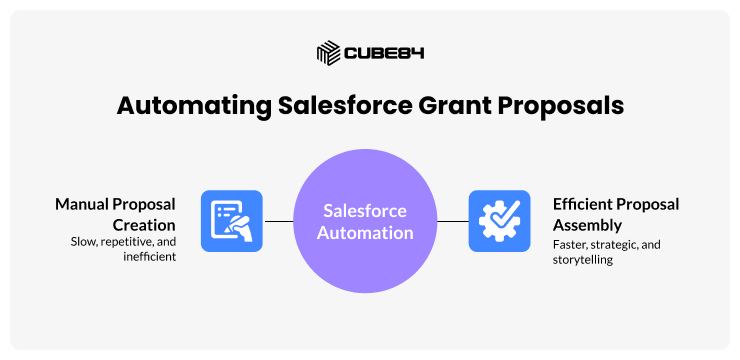
When you put all these steps together, you get a system for Salesforce grant proposal automation. Instead of starting from a blank page every time, your team pulls proposals from prebuilt, structured pieces. We’ve seen nonprofits reuse tagged sections to assemble applications much faster. The result is that staff spend less time on the mechanics and more time on strategy and storytelling.
Once your foundation and flows are set up, you can bring in AI to speed things up. Salesforce’s Agentforce platform acts like a conversational assistant that works with your Salesforce data.
For example, you might say:
“Hey Agentforce, help me write a healthcare grant for the Smith Foundation.”
The agent can then:
Pick the right proposal template and form structure for that funder
Ask which program and amount you want to request
Pull relevant program impact numbers and budget totals from Salesforce
Suggest content blocks that match your theme and length
Even draft initial paragraphs using your existing content and the funder’s context
Agentforce uses both structured data from your CRM and unstructured data like text or past grant applications. It’s basically an extra pair of hands that helps put the right content in the right place. The agents are built with nonprofit teams in mind so staff can spend less time on routine writing and more time on storytelling and strategy.
AI isn’t magic, though. It works best when your content blocks and data are organized. Think of Agentforce as an acceleration layer on top of the system you already built. It searches your library of reusable content and data to speed things up. Smaller nonprofits can even try entry-level or free tiers to experiment without committing big resources.
Cost of the Blank Page
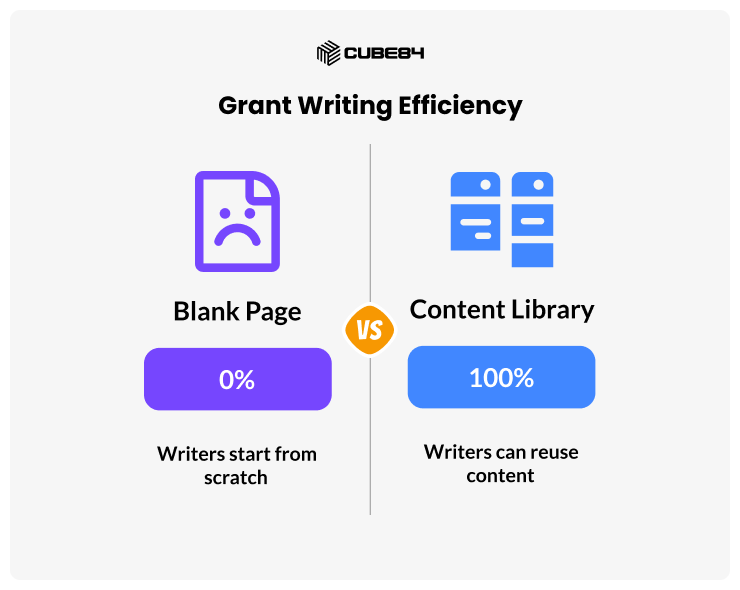
We often talk about the hidden “cost of the blank page.” Every time a writer starts from scratch, there’s an extra mental step: pulling the right numbers, remembering what was done last year, and figuring out what the funder wants. Automating content reuse removes that friction.
One nonprofit development director told us that starting each grant felt like re-learning the process. Even with past files available, every funder had slightly different needs, and he kept rewriting similar stories. With a content library, writers can instead think, “I’ll use our housing need section and just update the figures,” instead of staring at a blank document.
Conclusion: From 7 to 10 Proposals a Week
From what we have seen, most nonprofits already have the exact ingredients needed for this approach. They possess strong programs alongside years of proven proposal content. The missing piece is simply how that knowledge is organized.
When a client approaches CUBE84 with a repetitive grant workflow, the first thing we evaluate is their Salesforce data structure. Once that architecture is correct, the transformation becomes obvious. Writers spend zero time hunting for information. Proposal output naturally increases without burning your team out.
Combining Salesforce Nonprofit Cloud with tools like the Grants Content Kit keeps your data perfectly aligned for reuse. Organizing your content modules allows the Salesforce engine to handle the heavy assembly. That is exactly how organizations move from seven proposals a week to ten while keeping quality high. In the nonprofit world, hitting those double-digit submission counts means significantly more funding reaches the communities that need it most.
Reinventing the wheel every grant cycle? Reach out and we’ll help you organize your Salesforce org so it actually works for you.